How to Import/Export Products in a WooCommerce Store

Written by Manuela Willbold

Managing a growing product catalog by hand gets unmanageable fast.
If you need to update prices across hundreds of SKUs, move your catalog to a new website, or simply back up your shop before making changes, editing products one at a time through the WordPress dashboard just doesn't hold up. It's slow, it's repetitive, and a single typo can throw off your entire inventory.
This is exactly the problem the WooCommerce Product Import Export plugin by WebToffee solves. It lets you move your entire product catalog, including names, prices, images, attributes, stock levels, and categories, in and out of WooCommerce using a simple file, instead of touching each product by hand.
This guide covers the complete import and export workflow using the free version of the plugin, which handles CSV files and covers everything most stores need. If your catalog involves multiple file formats, scheduled automation, or more complex product types, the Pro version extends these same steps with extra capability, and we'll touch on that toward the end.
Why Import/Export Products for Your WooCommerce Store?
Before getting into the steps, it helps to know what this workflow actually solves. Here are the main reasons store owners rely on it:
➔ Site migrations. Setting up a new WooCommerce store? Export your entire product catalog from the old site and import it into the new one, with no manual re-entry required.
➔ Bulk catalog updates. Need to change prices, adjust stock levels, or edit descriptions across dozens or hundreds of products? Edit the exported file in a spreadsheet and import it back in a few minutes.
➔ Reliable backups. A downloaded copy of your product data is the fastest way to recover if something breaks after a plugin update or theme change.
➔ Multi-store syncing. Running more than one WooCommerce store? Export from one and import into the other to keep both catalogs aligned without duplicating your work.
➔ Supplier data onboarding. Got a product list from a supplier or a wholesaler? Map their spreadsheet columns to your WooCommerce fields and bring the whole list in at once.
Export WooCommerce Products
Here's how to export your product catalog using the free Product Import Export plugin. The process runs through a short wizard, so once you've seen it once, repeat exports are quick.
Step 1: Install and Activate the Plugin
Start by getting the plugin onto your site.
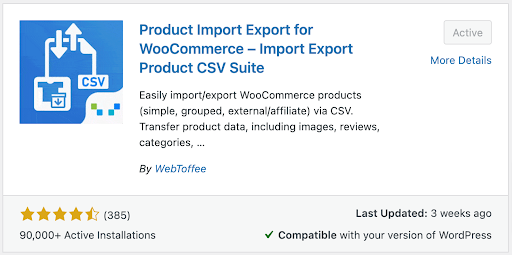
Go to Plugins > Add New Plugin from your WordPress dashboard.
Search for "Product Import Export for WooCommerce."
Click Install Now, then Activate.
If you're working with the Pro version instead, download the ZIP files and upload them through Plugins > Add New Plugin > Upload Plugin. Pro ships as a wrapper plugin plus an add-on, so make sure both are installed and active.
Step 2: Select Product as the Post Type
Once the plugin is active, open the export screen.
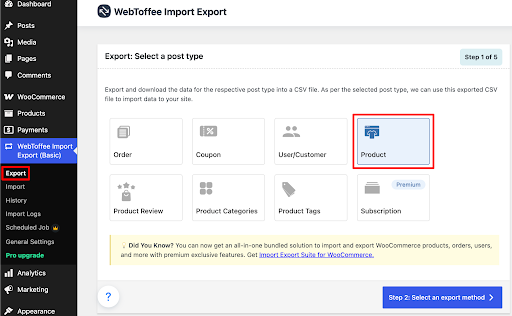
Navigate to Import Export (Basic) > Export from your WordPress admin sidebar.
Under Select a post type, choose Product.
Click Step 2: Select an export method to move forward.
You can also export Product Reviews, Product Tags, and Product Categories from this same screen, using the same steps.
Step 3: Select an Export Method
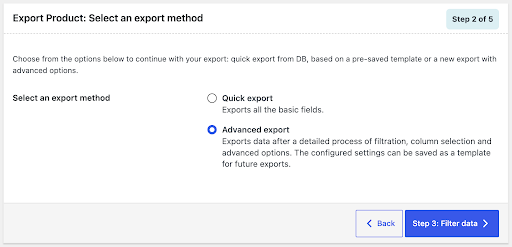
The plugin offers a couple of ways to export:
Quick Export exports every product right away using the default field set. Good for a fast, no-fuss backup.
Advanced Export lets you filter by category, product type, stock status, date, and more before anything gets exported.
For most tasks, Advanced Export is worth the extra step since it gives you control over exactly what leaves your store.
Step 4: Filter Your Export Data
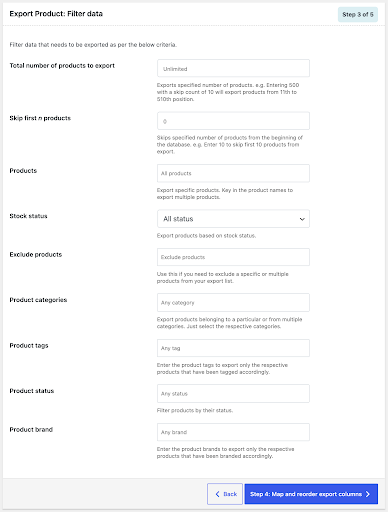
This step decides exactly which products make it into the file. You don't have to export your whole catalog every time.
Total number of products, if you only need a portion of the catalog.
Skip first n products, useful when paginating a large export.
Products, to search for and select specific items by name.
Stock status, to filter by In Stock, Out of Stock, or On Backorder.
Product categories and product tags, to narrow by grouping.
Product status, such as Published, Draft, or Private.
Once your filters are set, click Step 4: Map and reorder export columns.
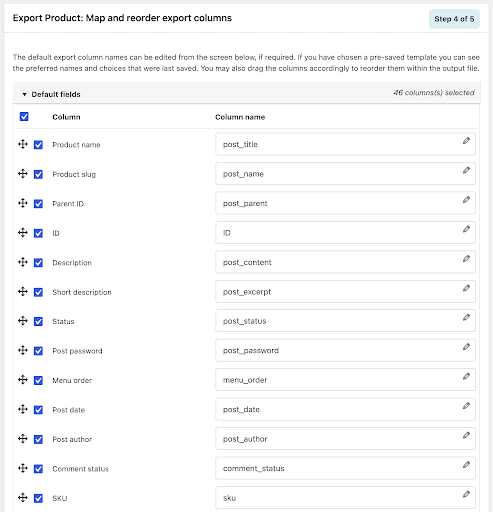
Step 5: Map and Reorder Export Columns
Here you decide which fields show up in your export and what they're called.
Click any column header to rename it.
Drag and drop columns to change their order.
Deselect any column you don't need.
Fields are grouped under Default fields, Taxonomies, Meta (Custom fields), Attributes, and Hidden meta.
Click Step 5: Advanced Options/Batch Export once the layout looks right.
Step 6: Configure Advanced Options and Export
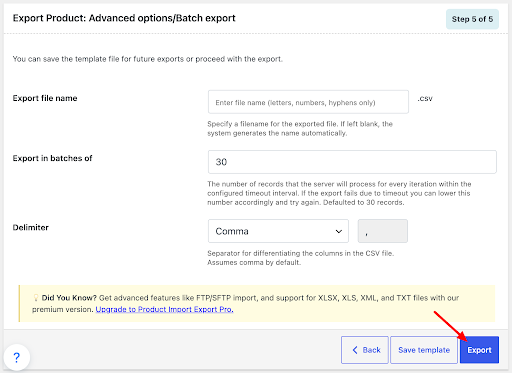
The last step lets you fine-tune the file before it downloads.
Set an Export file name so the download is easy to identify later.
Set a Batch size for large catalogs, which helps avoid server timeouts.
Click Export. Your file downloads straight to your computer.
That's it! You now have a full, editable copy of your product catalog.
Import WooCommerce Products
Now let's walk through bringing products back into WooCommerce. It's the same plugin, just the Import menu this time.
Step 1: Navigate to the Import Section
From your WordPress admin sidebar:
Go to Import Export (Basic) > Import.
Select Product as the post type.
Click Step 2: Select an import method.
Step 2: Choose an Import Method and Upload Your File
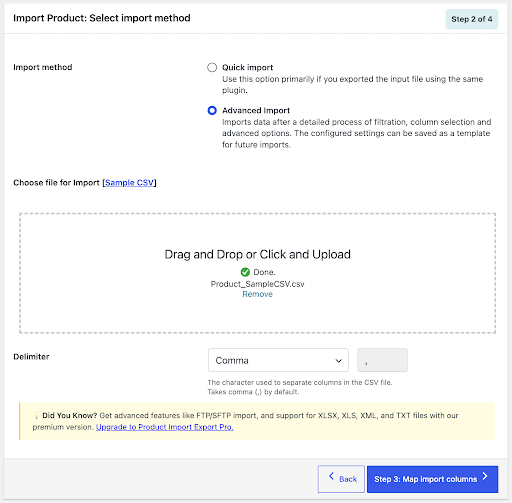
Two import methods are available:
Quick Import works well when you're re-importing a file exported by this same plugin. Upload it and go.
Advanced Import is the better choice when your file comes from another platform or you need to control how columns line up.
For Advanced Import:
Choose where the file is coming from: Local (your computer), URL, or FTP/SFTP (Pro only).
Upload your file by dragging it in or clicking the upload area.
Set the Delimiter. Comma is the default, so adjust it if your file uses something else.
Click Step 3: Map import columns.
More product types. Import and export variable, grouped, external/affiliate, subscription, and custom product types, not just simple products.
Step 3: Map and Reorder Import Columns
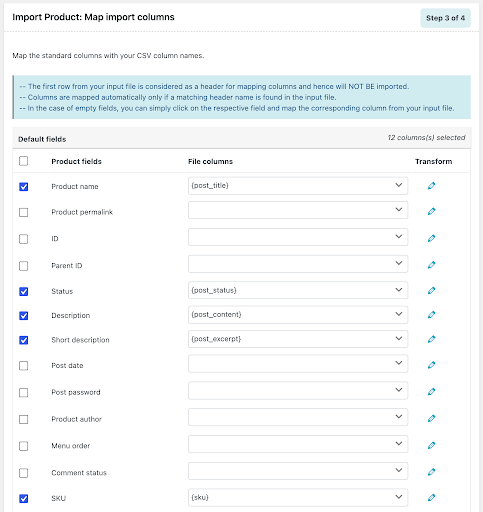
This step connects the columns in your file to the right WooCommerce product fields.
Matching column headers are mapped automatically.
For anything unmatched, use the dropdown to assign the correct field manually.
Drag columns to reorder them if needed.
Click Save as template to reuse this exact mapping on future imports, which saves real time on recurring jobs.
If your file includes an images column with image URLs, the plugin pulls each photo in automatically. That means you can import WooCommerce products with images in the same pass, without uploading anything separately through the Media Library.
Click Step 4: Advanced Options/Batch Import once the mapping checks out.
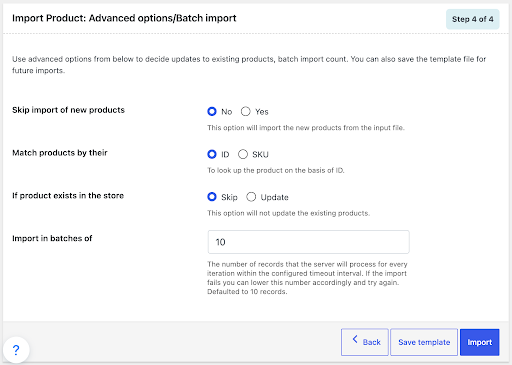
Step 4: Configure Advanced Options and Run the Import
Before you kick off the import, review these settings:
Skip import of new products, to decide whether brand-new products in the file should be added.
Update existing products, to decide whether matching products already in your store get updated.
Matching field, to choose whether existing products are identified by Product ID or SKU.
Batch size, to control how many products process at once and avoid timeouts.
Once everything looks good, click Import. A progress bar shows you how things are moving in real time.
Step 5: Review the Import Summary
Once the import finishes, the plugin shows you a summary:
How many products were imported successfully.
How many existing products were updated.
Any rows that were skipped or hit an error.
If something didn't go as planned, the import log gives you a row-by-row breakdown, so you only need to fix and re-run the affected rows instead of starting over.
Need More? What the Pro Version Adds
The free plugin covers the fundamentals well, and for most stores, that's plenty. The Pro version of the Product Import Export Plugin for WooCommerce is worth a look if your catalog has more demanding requirements.
➔ More product types. Import and export variable, downloadable, subscription, composite, and other custom product types. (The free version already handles simple, grouped, and external/affiliate products.)
➔ More file formats. Work with XML, TSV, XLS, and XLSX files in addition to CSV.
➔ Custom fields and hidden meta. Bring over custom metadata and data created by third-party plugins.
➔ FTP/SFTP support. Send and receive files directly from a remote server without manual downloads.
➔ Scheduled automation. Set recurring imports or exports on a cron schedule so your catalog stays in sync without you having to remember.
Wrapping Up
That covers the full import and export workflow for WooCommerce products. Once you've run through it a single time, exporting a full catalog and importing it back takes maybe twenty minutes combined, work that used to take days when done by hand.
If your catalog has grown past what simple products can handle, or you're running scheduled syncs between stores, the Pro version builds directly on the same steps you just learned, so there's no new workflow to pick up.
If you need to move more than products, WebToffee has plugins for that too. The WooCommerce Order Import Export Plugin handles orders, coupons, and subscriptions using the same step-based process. For customer data, the WordPress User Import Export Plugin covers user roles, passwords, and custom user meta. If you'd rather manage products, orders, and customers from one place, the Import Export Suite for WooCommerce bundles all three into a single plugin, so you're not juggling separate tools for separate data types.
Author Profile

Manuela Willbold
Blogger and Educator by Passion | Senior Online Media & PR Strategist at ClickDo Ltd. | Contributor to many Business Blogs in the United Kingdom | Fascinated to Write Blogs in News & Education I have completed a journalism summer course at the London School of Journalism and manage various blogs.
Free SSL Certificates

Recent Posts
The 8 Things That Actually Matter in WordPress Hosting (and Why websitehosting.app Wins on All of Them)
How to Host a WordPress Site on WebsiteHosting.app: A Step by Step Guide
The Managed WordPress Hosting Options in the UK Comapred to Kinsta, WP Engine and Cloudways
The Modern Tech Stack for Global Business Founders (Beyond Hosting)
Why your E-Store’s new Personal Digital Assistant is our N8N VPS Hosting
